 RyeDC
RyeDCA fare meter app for Uber, rideshare and taxi drivers
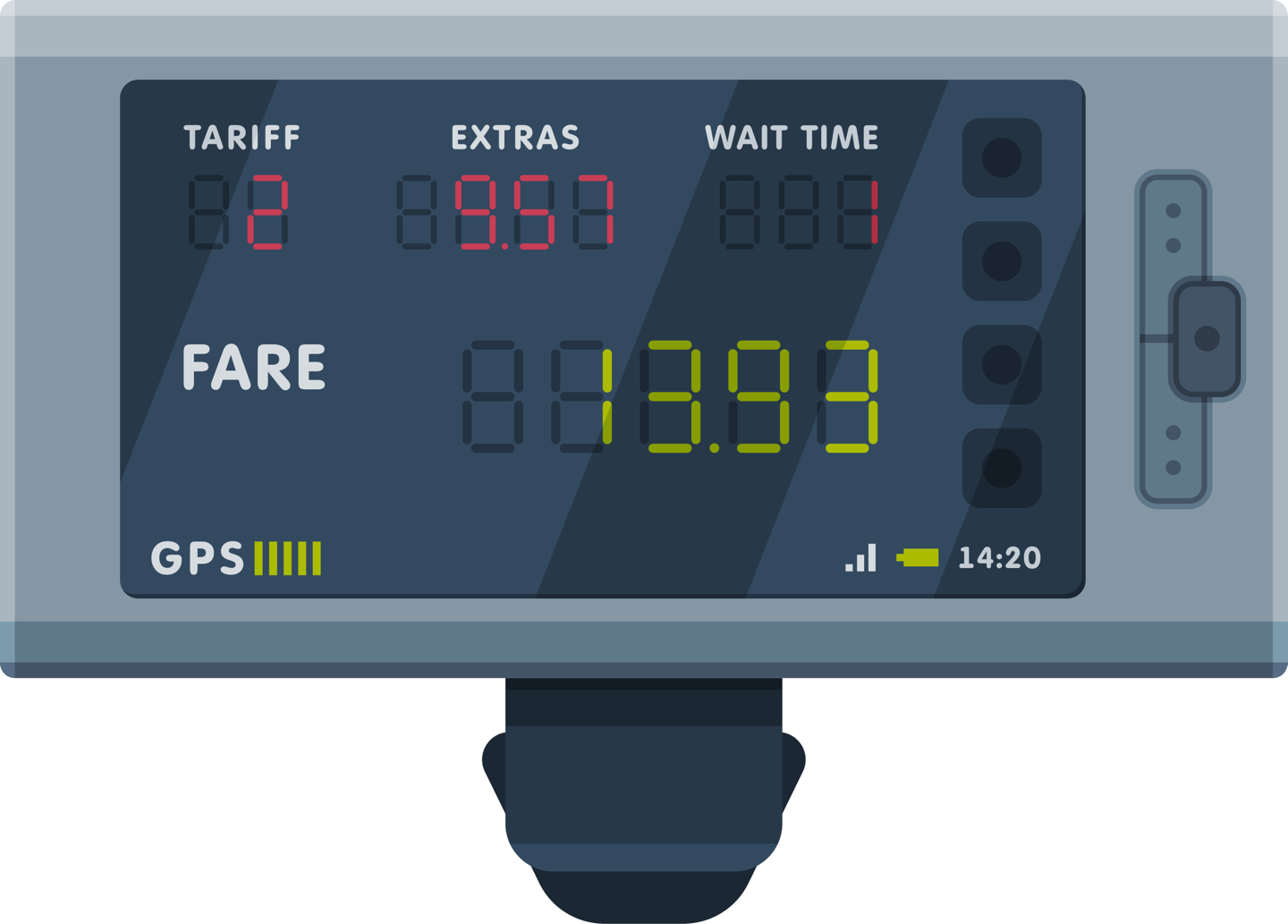
Set up a rate card for each service you drive for — private bookings, airport runs, a company account, Uber, DiDi or Lyft. Fare Meter quotes a trip before it starts, then shows the distance, the time and the fare as they run, with your route drawn on the map.



How the fare meter works
Your rate cards
A service holds the base fare, minimum fare, per-minute and per-kilometre rates, surcharges, booking fee, and the service fee or commission taken off what you are paid. Set up as many as you drive for and switch between them from the card at the bottom.
Swipe Start
The card shows the fare, the distance and the time as they run, and they keep running while you use other screens. If the app closes mid-trip, you can resume or end the trip when you open it again. Tap Add toll or surge during the trip to enter a demand price multiplier or top-up, or a toll, and the fare follows.
On the lock screen
While a trip runs, the fare and distance stay on the lock screen under the app's name, with the service and a clock from the start — a notification on Android, a Live Activity on iPhone in the app's amber — so you can glance at the meter without unlocking the phone. When you start a trip after Use as agreed price on a quote, it also shows the two places and a bar that fills as the trip goes. On iPhone, an agreed price is marked Agreed, and the Dynamic Island shows a ring beside the clock that fills the same way. Android asks once to allow notifications the first time you start a trip.
Swipe to end
Ending a trip shows what it came to, with room for a tip or a toll. Done closes it, and Trip details opens the trip you just finished.
Trip details
The route on a map, the fare and what you get, and every line that made up the total: distance and time amounts, demand pricing, booking fee, surcharges, the fare, the service fee, tips, tolls and the amount to you. Tap Edit to correct a figure.
Invoice
Tap Invoice when a trip ends, or on a trip's details, for a PDF to send the passenger. It comes from your business, with your name and ABN from Business details, and is a tax invoice if you are registered for GST. Outside Australia, it carries your own tax number and how to pay you, and no GST. You issue it, so check it before you send it. The Help covers it: Business details and invoices.
Trips
Every trip you have recorded, whichever service it was under, grouped by day, with this week's total at the top. Each row names the service and the suburbs it ran between. Tap one for its details, or swipe to delete it.
Quote a fare before the trip starts
Tap Quote to price a trip before you drive it: type where it starts and where it goes — suggestions appear as you type — and RyeDC works out the road distance, the time without traffic and the fare for your service, and draws the route on the map. Tap the two places to change them.
Agreed price, for a fixed-price booking
Use as agreed price carries the quote and its two places onto the trip, and the route stays on the map until the trip starts. For a price you agreed some other way, tap Agreed price before you start, or Add toll or surge during the trip, and type it. The meter still measures the drive and Trip details shows what it would have charged, but the fare is the price you agreed. Tips and tolls are added on top.
The Help covers it step by step: Recording a trip.

Know what a trip paid
A booked fare is worked out by the platform. Fare Meter runs your own reading beside it, from the rates you entered, so you can see what a trip came to on your figures, how much a surge or a toll added, and what was left after the service fee.
It is a meter for private work too: a regular airport run, a client you invoice yourself, a booked trip at a rate you agreed.
Your earnings by week, month or financial year
Open Reports from the menu and tap Earnings for your earnings across every service: fares, tips, tolls, service fees and what you took home, for this week, this month, the financial year or any dates, with a PDF or Excel copy to share.
Fare Meter and automatic mileage together
They both run. A fare drive becomes a trip here and a detected drive under Mileage, in separate records. They are never added together, and Fare Meter trips never count towards your business-use figure; that comes from your detected drives and shifts, in your ATO logbook.
Not a taximeter
Fare Meter is a fare reading on your phone for private and booked work. It is not the certified, sealed meter a taxi needs for rank and hail work. In Victoria, for example, Safe Transport Victoria requires the meter for unbooked taxi trips; other states have their own rules. Check with your regulator before using any phone app as the meter for a rank or hail fare.
Uber, DiDi and Lyft are named here because they are the services drivers set up. RyeDC is not affiliated with any of them. The Help covers Fare Meter in full: Fare Meter.
Get RyeDC free
On iPhone and Android. No subscription: RyeDC is paid for by adverts.